See, play and route every MIDI message.
MIDI Toolkit is a native Mac app that shows you exactly what your gear and software are saying, lets you send notes and controls back, and patches any input to any output. One window, three tools, no setup.
Free on the Mac App Store. No account, no ads, nothing collected.
Monitor. Send. Routing.
Switch between them from the picker in the toolbar, or with ⌘1 ⌘2 ⌘3. Each one keeps its own sidebar and inspector, so the details you need are always one glance away.
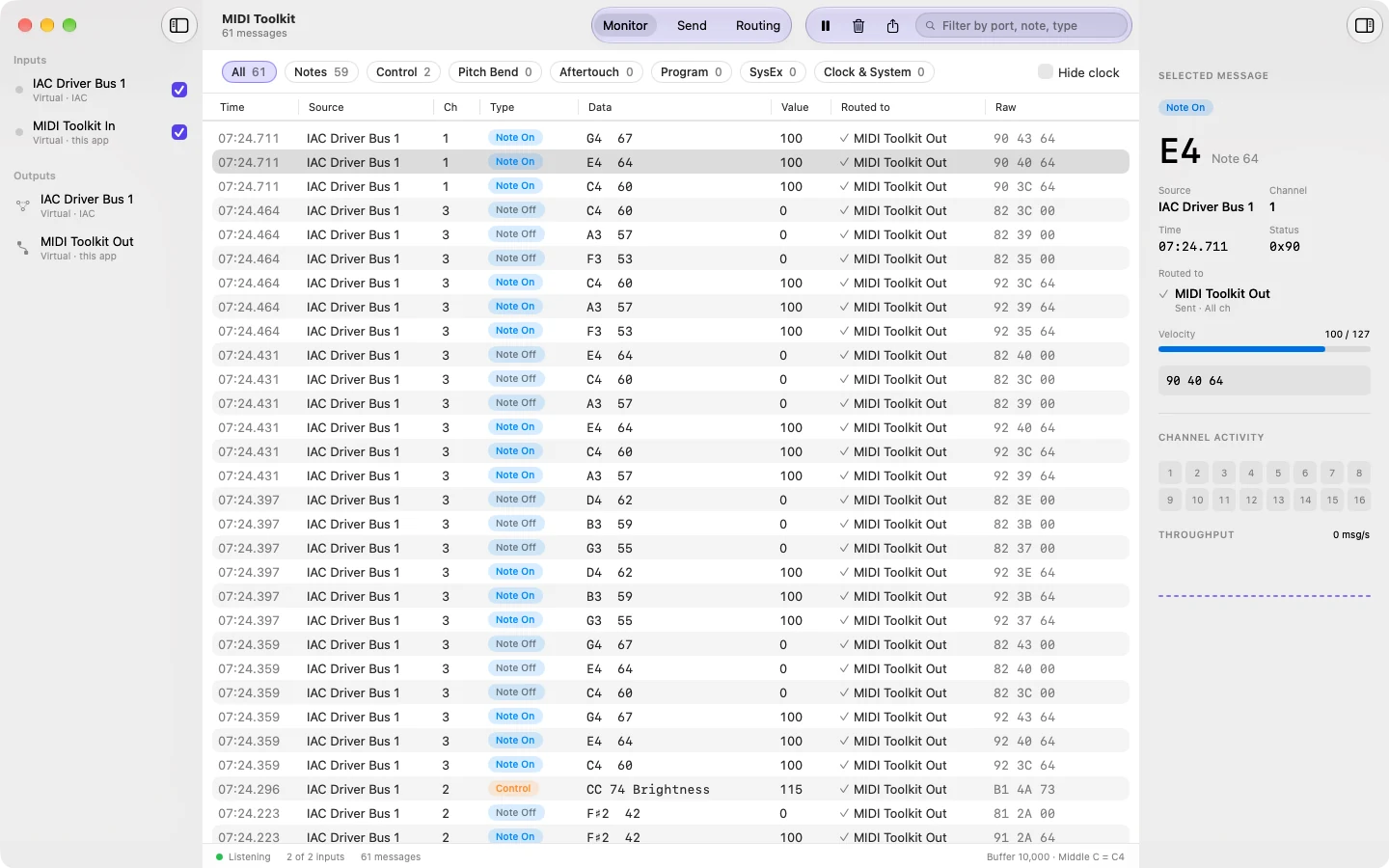
Watch everything that comes in.
- Every message, decoded. Note names, channels, values and the raw bytes, side by side.
- Filter by type with live counts for Notes, Control, Pitch Bend, Aftertouch, Program, SysEx and Clock.
- Hide clock to drop Timing Clock and Active Sensing, which otherwise flood the log.
- See where it went. Each message shows which routes sent it on, and whether the output received it.
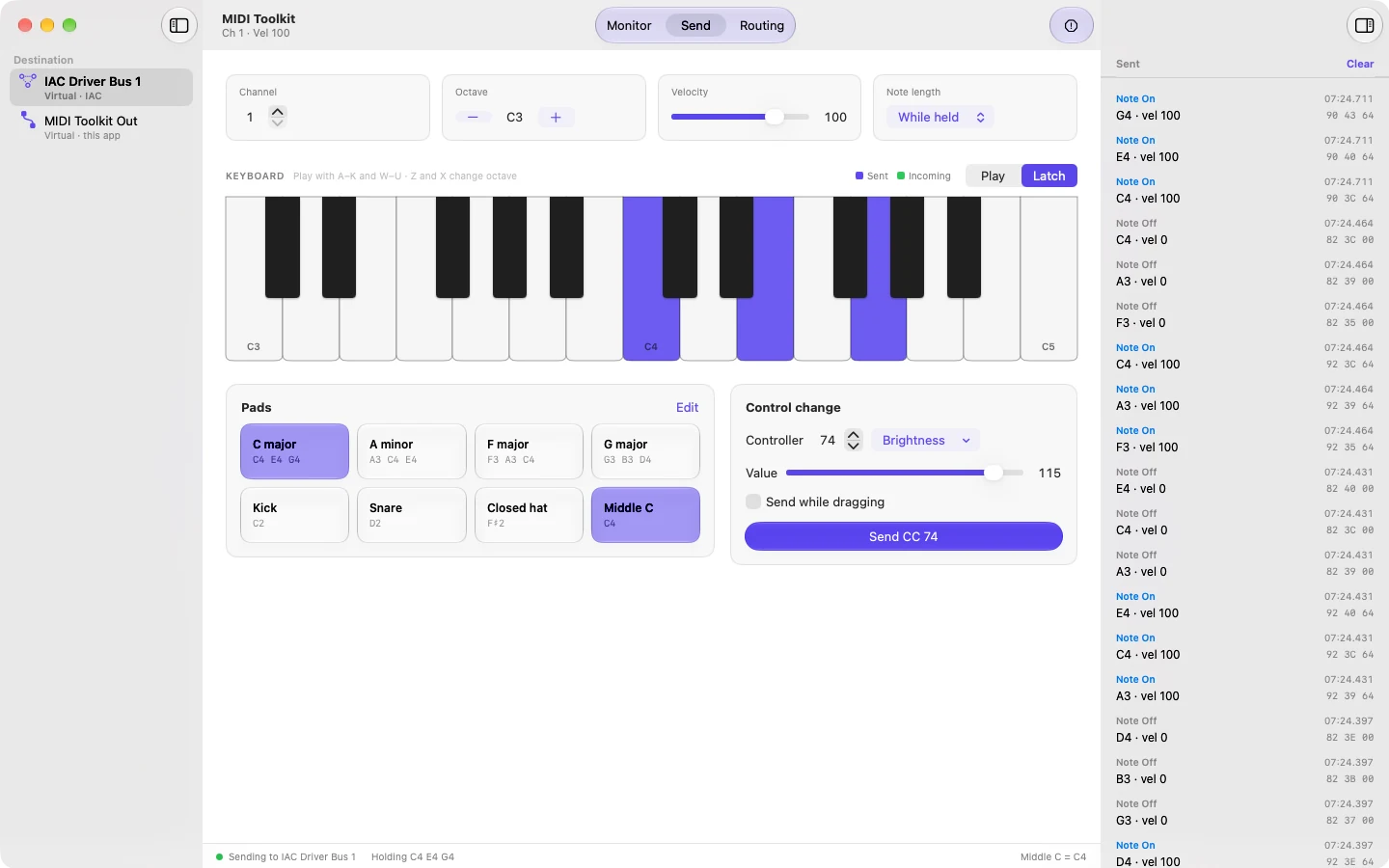
Play notes and controls into anything.
- Pick a destination from the sidebar: hardware, a DAW, or another app's virtual port.
- Play from your Mac keyboard. A–K are the white keys, W–U the black keys, Z and X change octave.
- Chord pads you can rename and refill, up to eight notes each. Latch holds them down.
- Control change with named controllers, and an option to send while you drag.
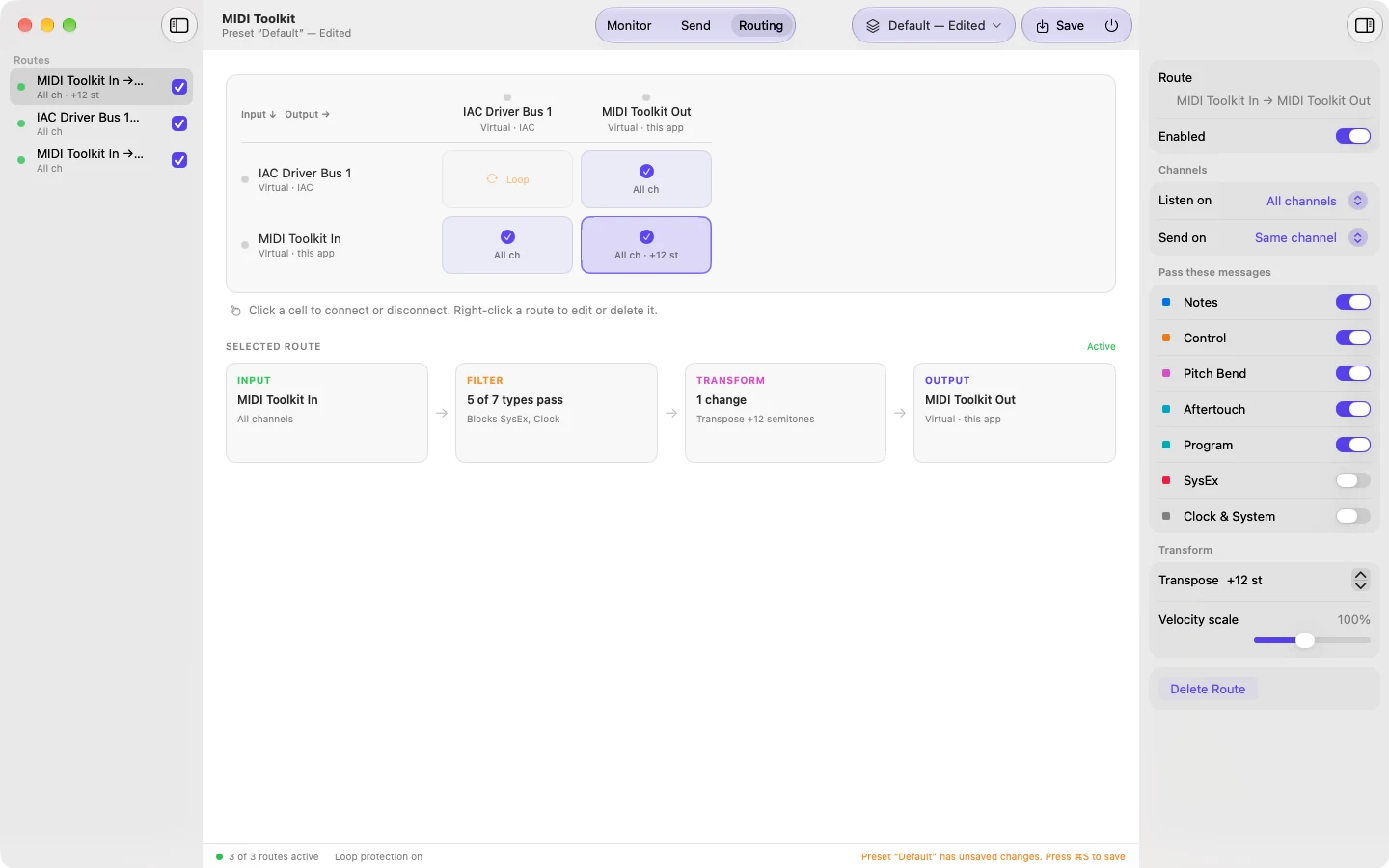
Patch any input to any output.
- A patchbay grid. Inputs down the side, outputs across the top. Click a cell to connect them.
- Shape each route by channel, message type, transpose and velocity scale.
- Presets save whole setups. Switch with ⌥⌘1–⌥⌘9, save with ⌘S.
- Loop protection stops a port from feeding itself.
Your Mac keyboard is a MIDI keyboard.
Hold A for C, W for C♯, and so on up to K. Every key sends a Note On while it's down and a Note Off when you let go, so you can test a synth, check a mapping or audition a patch without reaching for hardware.
Try it here. Click the keys, or type on your keyboard. The readout shows the exact three bytes MIDI Toolkit would send.
A patchbay that fits in a menu bar.
Connect a controller to two synths at once, send a DAW's output to hardware an octave up, or strip out clock before it reaches something that doesn't need it. Routes keep running while MIDI Toolkit is open, even with the window closed.
Click a cell to connect it. Some cells are marked Loop and can't be connected: those would send a port's messages straight back into it.
Output →
3 routes active. Example ports; yours come from your Mac.
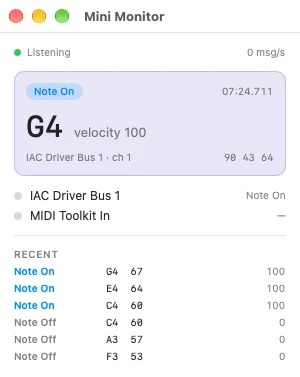
Keep an eye on MIDI from anywhere.
Close the window and MIDI Toolkit stays in the menu bar, still listening and still routing. Open it to see the latest message, pause monitoring or switch presets.
Pin the Mini Monitor and it floats above every app on every desktop, showing each message as it arrives. It's handy beside a DAW when you're chasing down a stuck note or a mystery controller.
The small things that save an evening.
Channel activity
Sixteen lights show which channels are busy right now, with throughput in messages per second.
Search and export
Find messages by port, note or type with ⌘F, then export the whole log as CSV.
Delivery check
Every routed message is marked as delivered or failed. On IAC buses, MIDI Toolkit confirms it came back on the bus.
Bypass all
Pause every route at once with ⇧⌘B, then bring them all back exactly as they were.
Incoming notes light up
Notes arriving on monitored inputs glow on the on-screen keyboard, in green, next to the notes you send.
All notes off
One shortcut, ⌘., releases held notes and sends All Notes Off on every channel.
Its own virtual ports
Other apps can send to “MIDI Toolkit In” and listen to “MIDI Toolkit Out”. Rename them in Settings if you like.
Your middle C
Call note 60 C3 or C4 to match your DAW, and keep 1,000, 10,000 or 50,000 messages in the log.
MIDI Toolkit never connects to the internet. No account, no analytics, no tracking. Your MIDI stays on your Mac.
- Requires
- macOS 26 Tahoe or laterBuilt and tested on macOS 27 Golden Gate
- Built with
- SwiftUI and CoreMIDIA native Mac app
- Security
- App SandboxDistributed through the Mac App Store
- Data collected
- NoneRead the privacy policy
- Price
- FreeNo in-app purchases
Questions, answered.
Do I need any MIDI hardware?
No. MIDI Toolkit works with any MIDI port your Mac can see, including virtual ones. Turn on the IAC Driver in Audio MIDI Setup, or use MIDI Toolkit's own “MIDI Toolkit In” and “MIDI Toolkit Out” ports, and you can monitor, send and route between apps with no cables at all.
Will it work with my DAW?
Yes. Logic Pro, Ableton Live, Bitwig and most other music apps can send to and receive from IAC buses or MIDI Toolkit's virtual ports. Point your DAW's MIDI output at one of them and watch it in the Monitor.
Does routing keep working when I close the window?
Yes. Closing the window doesn't quit MIDI Toolkit. It stays in the menu bar and keeps every route running until you quit it with ⌘Q.
Does it work on macOS 27 Golden Gate?
Yes. MIDI Toolkit is built with the macOS 27 SDK and tested on Golden Gate, so it gets Golden Gate's updated toolbar and Liquid Glass look. It also runs on macOS 26 Tahoe.
What about Network MIDI?
Network sessions you set up in Audio MIDI Setup show up in MIDI Toolkit like any other port, so you can monitor and route them too.
Why is my log full of clock messages?
Many devices send Timing Clock 24 times per beat and Active Sensing every 300 ms. Tick Hide clock above the log to tuck them away. They're still received and routed, and still used for the BPM readout.
Does MIDI Toolkit collect any data?
No. It makes no network connections and has no analytics. Settings and presets are stored on your Mac, and the message log lives in memory until you quit or export it. See the privacy policy for details.
Something isn't working. Where do I get help?
The support page has setup steps, troubleshooting and every keyboard shortcut. If you're still stuck, email support@miditoolkit.app and we'll take a look.
Hear what your MIDI is saying.
Free for macOS 26 Tahoe and later. Ready for macOS 27 Golden Gate.
Download on theMac App Store